AI Generation
SenseCraft Seeedash, used to be known as SenseCraft HMI is Seeed Studio’s interactive interface design platform for display-based devices. One of its most powerful features is AI Generation, which allows you to create images and UI layouts simply by describing what you want in natural language. In SenseCraft Seeedash, AI Generation is available in two modes:
- AI Image Generator, which creates a standalone custom image based on your description.
- AI Layout Generator, which builds a complete UI layout with functional components such as text, buttons, and data displays.
You can follow the steps below to start exploring the AI Generation features in SenseCraft Seeedash.
Using AI to Generate Images
Section titled “Using AI to Generate Images”Step 1. Enable the Function Click the AI Gen menu in the navigation bar and select AI Image Generator.
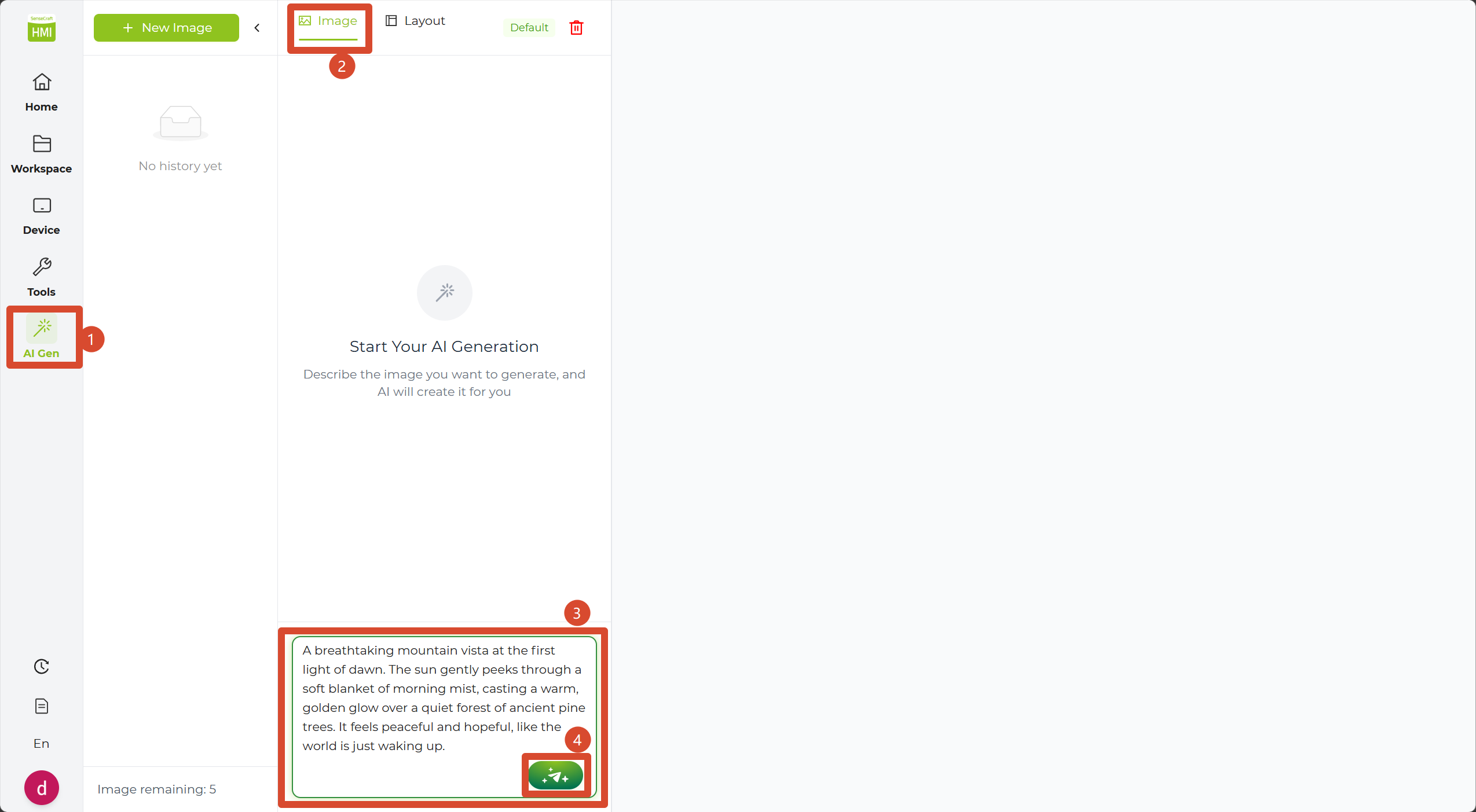
Step 2. Enter Prompts In the input box, enter a detailed description of the image you want to create. For example:
- “A breathtaking mountain vista at the first light of dawn. The sun gently peeks through a soft blanket of morning mist, casting a warm, golden glow over a quiet forest of ancient pine trees. It feels peaceful and hopeful, like the world is just waking up.”
Step 3. Start Generation Click the send button to initiate the generation process.
Step 4. Wait for Processing Wait while the AI processes your request. This typically takes 10–30 seconds depending on the complexity of your description.
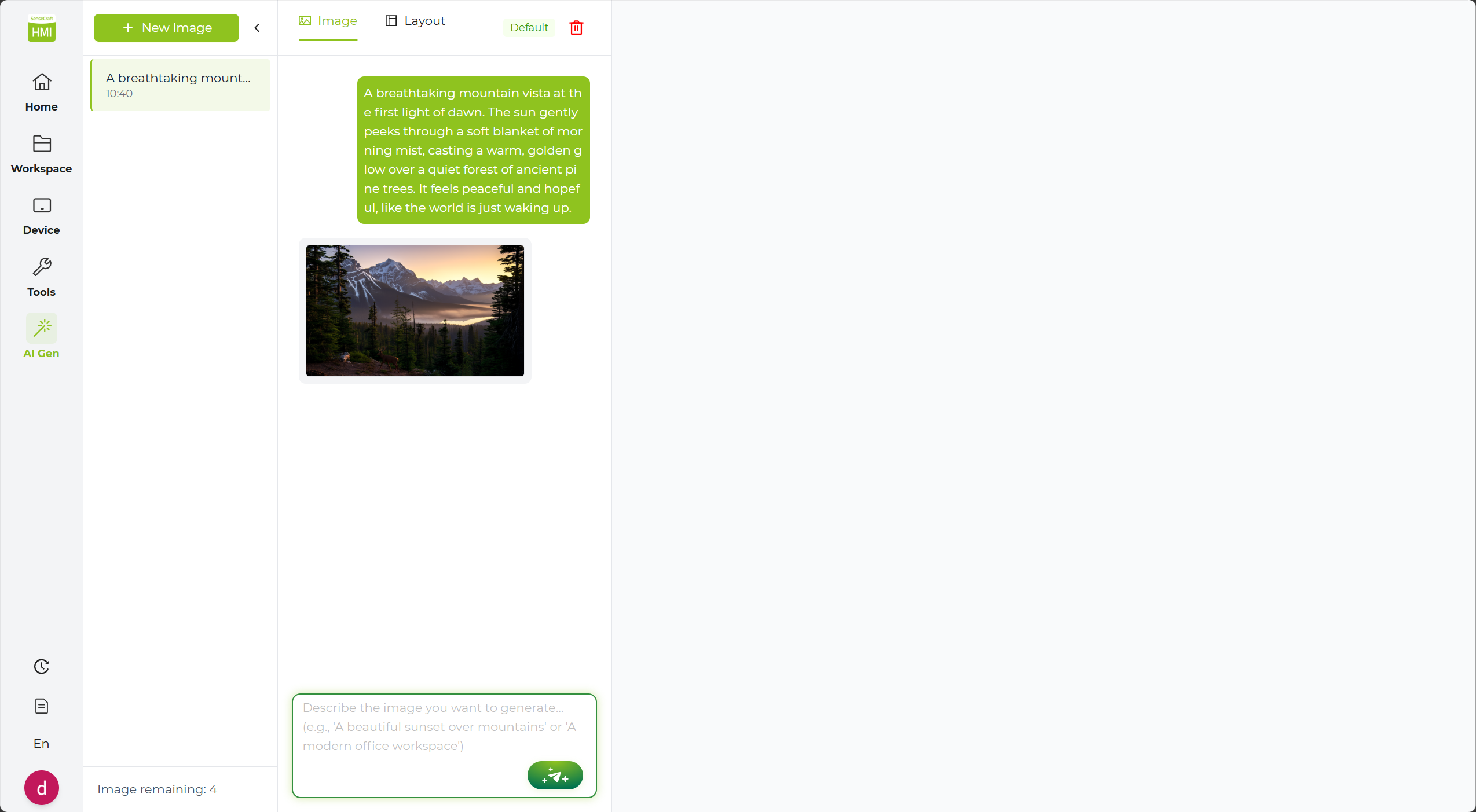
Step 5. Iterative Refinement Once the image is generated, you can refine it through conversation with the AI. For example:
- “Make the colors more vibrant.”
Step 6. Update Results Click the send button again to generate a new version based on your latest feedback.
Step 7. Iterate Until You’re Satisfied Continue refining the result until it matches what you want.
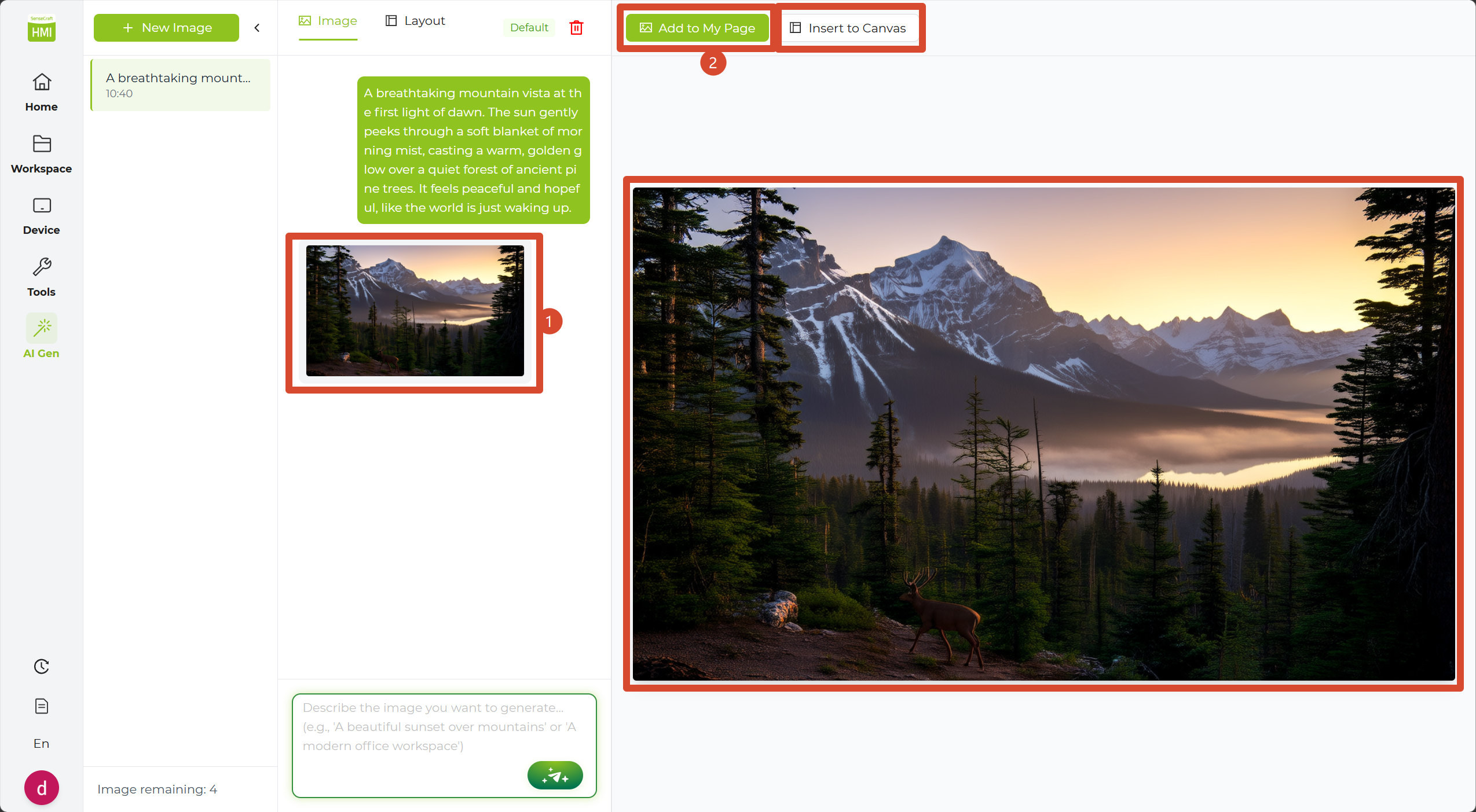
Step 8. View Details Click the generated thumbnail to open a larger preview on the right.
Step 9. Add to Workspace
Click Add to My Page to save the generated image as an image page in your workspace.
Click Insert to Canvas to add the generated image directly to your canvas as an Image component.
Using AI to Build Layouts
Section titled “Using AI to Build Layouts”Step 1. Enable the Function Click the AI Gen menu and select AI Layout Generator.
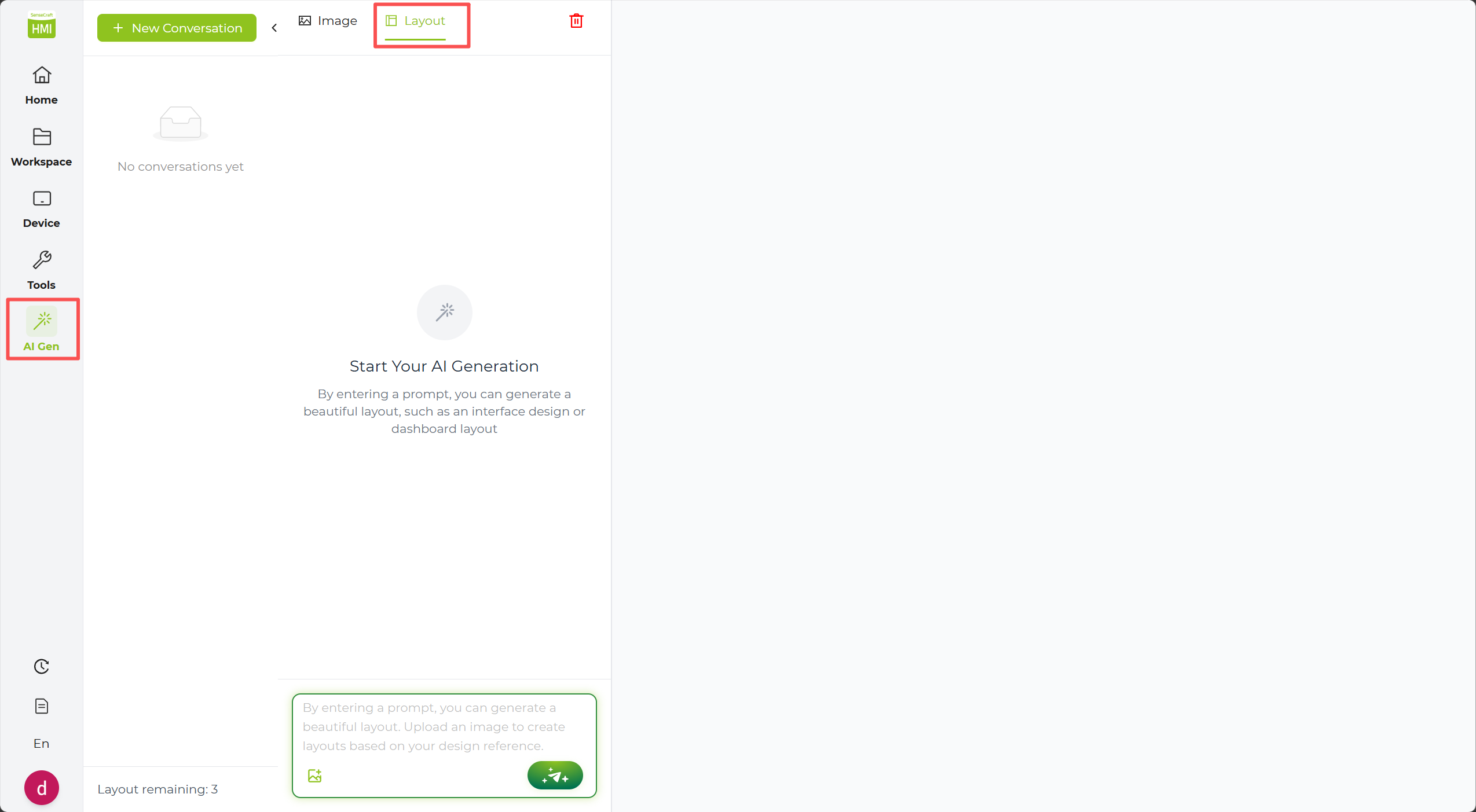
Step 2. Describe Layout Requirements Enter a description of the interface you want to create. Be specific about the components you need. For example:
- “Create a weather dashboard with a temperature display, humidity gauge, and forecast icons.”
Step 3. Generate Interface Click the send button to start the process and wait for the AI to build the complete interface layout.
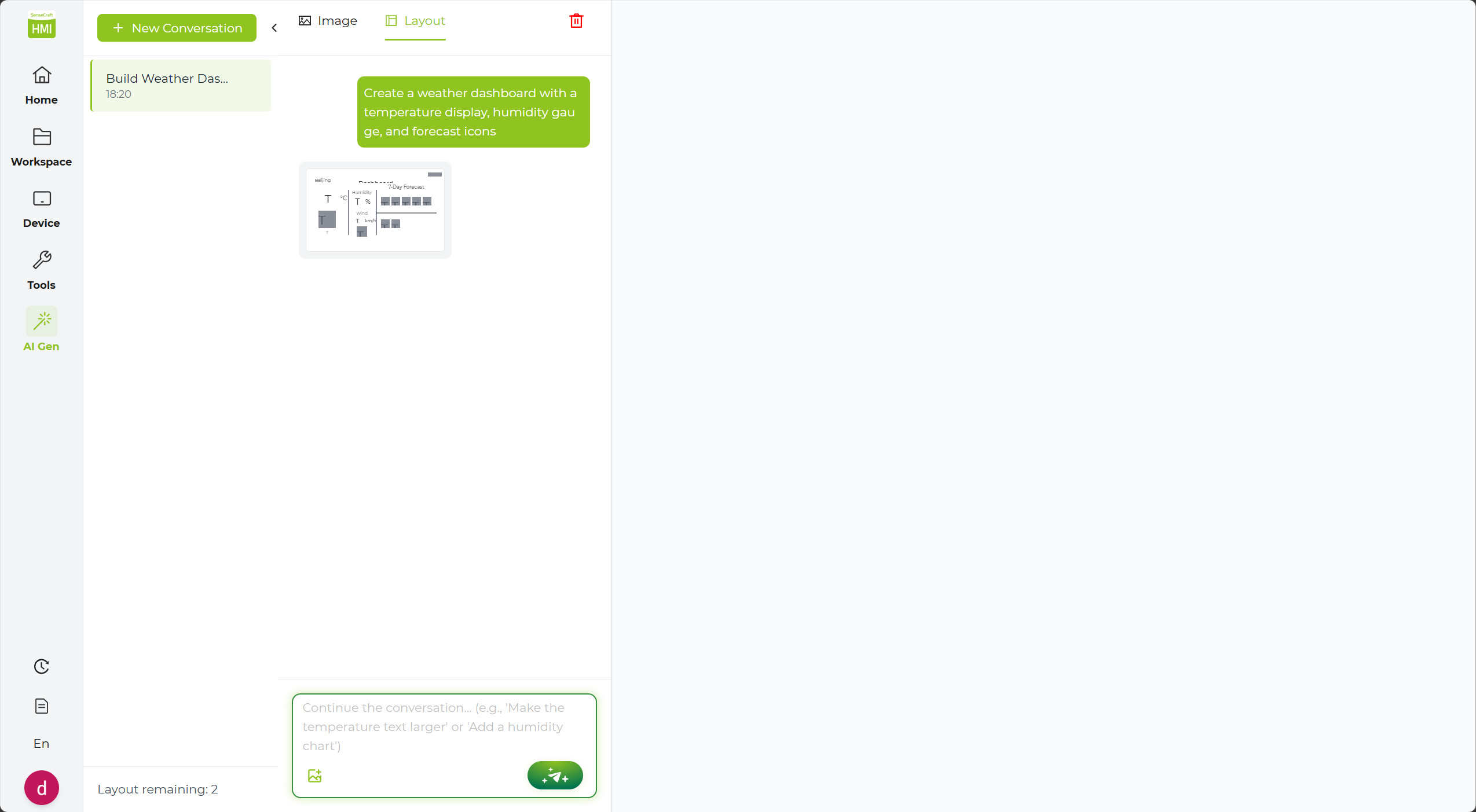
Step 4. Layout Fine-Tuning After the initial layout is generated, you can adjust positions or styles through conversation. For example:
- “Move the temperature display to the top right.”
Step 5. Refresh Layout Click the send button again, and the AI will rearrange or modify components based on your feedback.
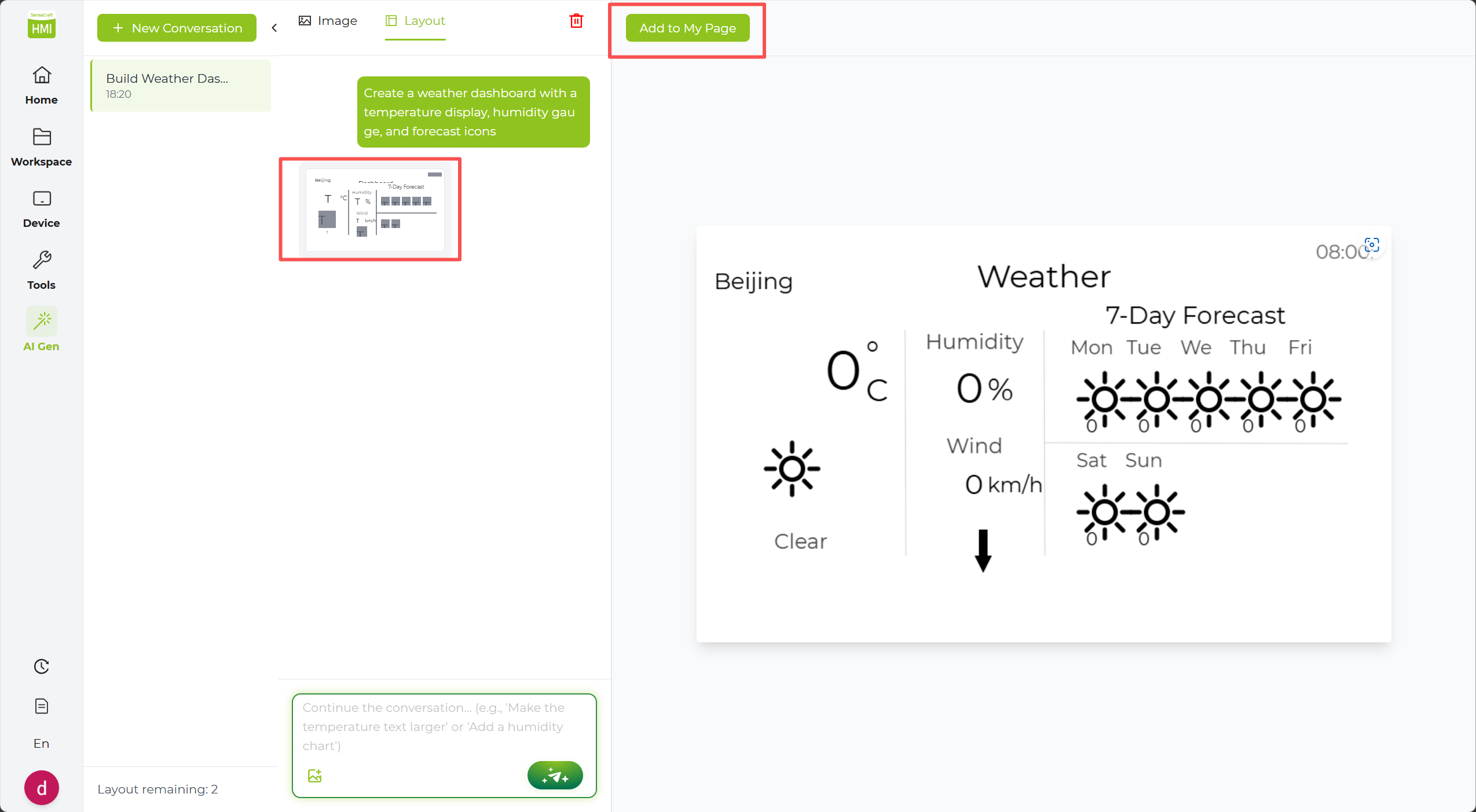
Step 6. Preview Details Click the thumbnail to review the layout in the detail panel on the right.
Step 7. Add to Workspace Click Add to My Page to save the layout as a new page in your workspace.
Best Practices for AI Generation
Section titled “Best Practices for AI Generation”1. Tips for Effective Prompts
Section titled “1. Tips for Effective Prompts”- Be specific: Instead of “Create a dashboard,” try “Create a dashboard with temperature display in the center, humidity on the right, and a clock at the top.”
- Mention colors and style: For example, “Use a blue and white color scheme with rounded corners for all elements.”
- Reference familiar designs: For example, “Make it look like a smart thermostat interface” or “Design it similar to a fitness tracker display.”
2. Iterative Refinement
Section titled “2. Iterative Refinement”The most successful designs often come from multiple rounds of feedback:
- Start with a general description.
- Generate the initial design.
- Provide specific feedback on what to change.
- Generate an updated version and repeat until satisfied.
3. Combining AI with Manual Editing
Section titled “3. Combining AI with Manual Editing”For best results:
- AI Base: Use AI to quickly create the basic layout and core components.
- Manual Tuning: Fine-tune the positioning, sizing, and properties of individual elements manually.
- Data Binding: Manually add custom functionality or link data sources.
- Major Changes: If you need to add entirely new sections, seek assistance from the AI again.